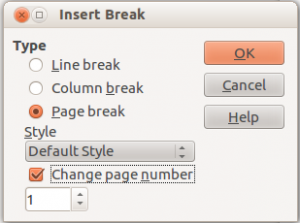
Once we have prepared the first cover page (cover), press F11 to open the style manager. In the manager, click the "Page Styles" icon and then select all styles (all) from the drop-down list at the bottom. You will see that there are several styles available, including "First Page". Double-click to select that style. Once this is done, go to the end of the cover page and insert a page break by selecting the menu option "Insert/Manual Break". A dialog box like the one in the image will open.

There we will select "Page break" and under style: "Default style". Upon doing so, we will see that it allows us to change the page number of the page we are going to insert after the cover page ("Change page number").
We will see that clicking OK triggers several things. Writer will create a new blank page after the cover page, which will no longer be connected to the cover page. Beyond that, all that's left is to add the page number in the usual way.

For more information, you can check: