Media Playback
The Android multimedia framework includes support for playing various types of media, making it easy to integrate audio, video, and images into applications.
Resources go into the RAW directory.
Audio offers more flexibility than video... If you try to stream over Bluetooth, how do you set priority for audio? We have AudioManager, which allows you to manipulate everything related to audio.
In both cases (audio or video), we need to set permissions if we want to stream.
<uses-permission android:name="android.permission.INTERNET" />
If the application needs to keep the screen on, you can use MediaPlayer.setScreenOnWhilePlaying() or the MediaPlayer.setWakeMode() methods, along with their permissions:
<uses-permission android:name="android.permission.WAKE_LOCK" />
The MediaPlayer class allows you to fetch, decode, and play audio and video. Internal URLs, audio playlists, photos... and external URLs (streaming).
Supported formats can be viewed at:
http://developer.android.com/guide/appendix/media-formats.html
If we want to play a local file (RAW), we will have to save it in the /res/raw directory:
MediaPlayer mediaPlayer = MediaPlayer.create(context, R.raw.audio1);
mediaPlayer.start();
If we want to use streaming, we will need to set:
String url = "http://........";
MediaPlayer mediaPlayer = new MediaPlayer();
mediaPlayer.setAudioStreamType(AudioManager.STREAM_MUSIC);
mediaPlayer.setDataSource(url);
mediaPlayer.prepare(); // it can take a while to load into the buffer.
mediaPlayer.start();
The prepare() method should never be called from the GUI (Graphical User Interface) thread. Imagine you are making a word search game and you want background music: if you do it directly in the activity, it would block the interface until the buffer loads. The solution is to put it in a service.
There is a method called prepareAsync() that creates a service automatically. A listener will be required, which will call a callback and trigger when it is loaded.
The MediaPlayer works as a state machine.
http://cfile23.uf.tistory.com/original/191F6F184C1E1BBE07D17F
Once a media resource has been used, it needs to be released with the release() method. It is important to keep in mind that when the user changes orientation, a new MediaPlayer object is created because onCreate() is called again, which is why resources need to be freed.
media.release();
media=null;
If we don't want this behavior, we can save the state and manage it manually.
By making it so that when an orientation change occurs or the keyboard is hidden, it executes the default method that detects configuration changes (onConfigurationChanged()), which will trigger if specified in the activity. The newConfig object will contain the information you can query for the state.
Being able to check the orientation allows us to use conditionals and detect when a change is triggered.
Afterwards, it will call onCreate().
For example, to handle an orientation change:


Code:
`
<manifest package="es.com.blogspot.fmesasc.cambiohorientacion">
<application android:allowBackup="true" android:icon="@mipmap/ic_launcher" android:label="@string/app_name" android:supportsRtl="true" android:theme="@style/AppTheme">
<activity android:name=".MainActivity" android:configChanges="orientation|keyboardHidden|screenSize" android:label="@string/app_name">
<intent-filter>
<action android:name="android.intent.action.MAIN"/>
<category android:name="android.intent.category.LAUNCHER"/>
</intent-filter>
</activity>
</application>
</manifest>
`
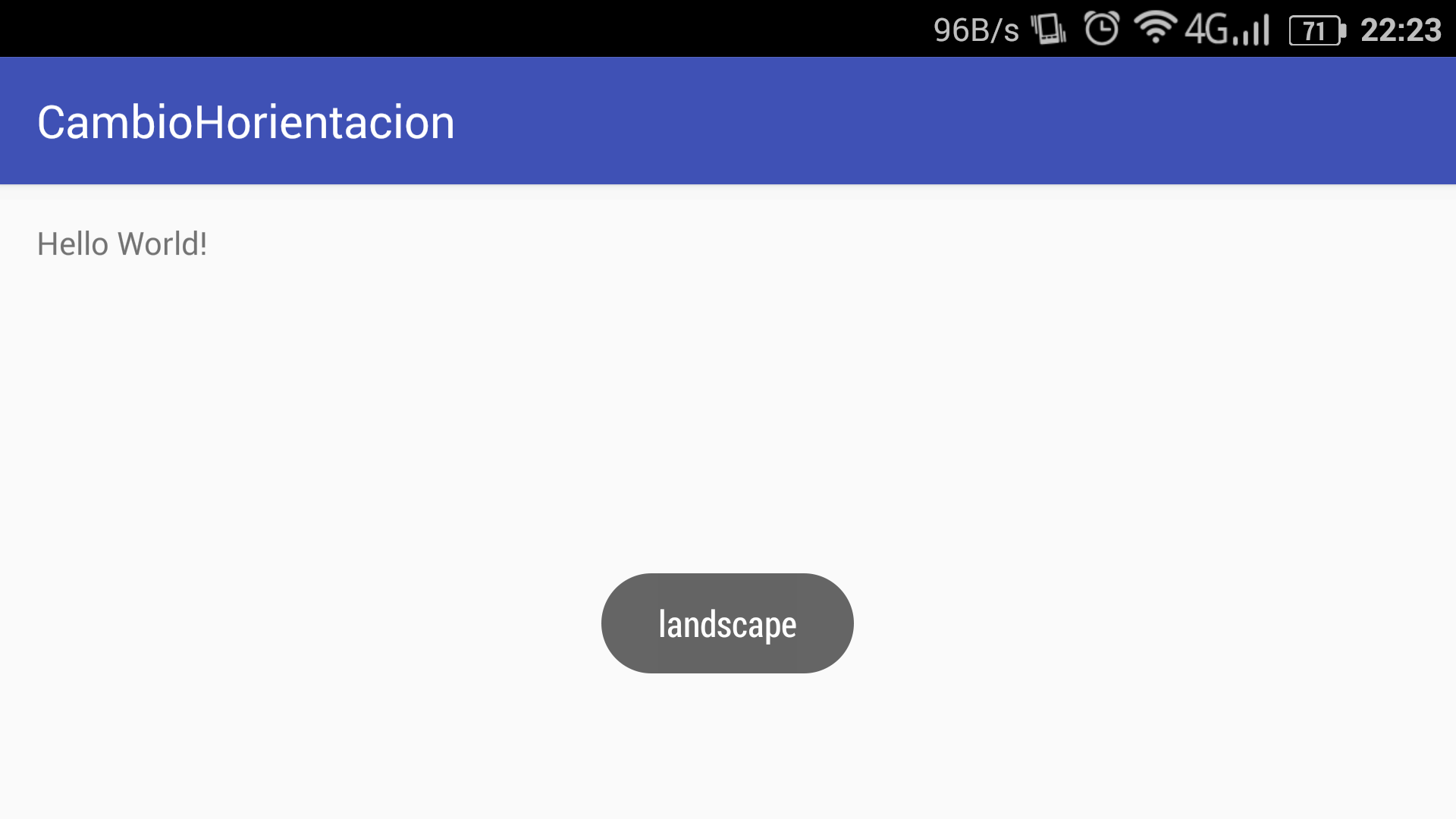
As you can see, we have added android:configChanges="orientation|keyboardHidden|screenSize" so that it detects screen rotation or keyboard hiding in this case. For this to work, we will need to override a function:
` package es.com.blogspot.fmesasc.cambiohorientacion; import android.content.res.Configuration; import android.support.v7.app.AppCompatActivity; import android.os.Bundle; import android.widget.Toast;
public class MainActivity extends AppCompatActivity { @Override protected void onCreate(Bundle savedInstanceState) { super.onCreate(savedInstanceState); setContentView(R.layout.activity_main); } @Override public void onConfigurationChanged(Configuration newConfig) { super.onConfigurationChanged(newConfig); if (newConfig.orientation == Configuration.ORIENTATION_LANDSCAPE) { Toast.makeText(this, "landscape", Toast.LENGTH_SHORT).show(); } else if (newConfig.orientation == Configuration.ORIENTATION_PORTRAIT){ Toast.makeText(this, "portrait", Toast.LENGTH_SHORT).show(); } } }
`
onConfigurationChanged will only work if it is declared in the manifest. This way, we can check the new orientation and compare it to know if it is landscape or portrait. Thus, we show the toast from the initial example indicating the orientation type.
Services
Services are application components that perform long-running operations that do not require user interaction, or that provide functionality for other applications. They typically send emails, synchronize data, or play media.
Just as there is an activity in the manifest, we will also need to declare services in the manifest. Communication is similar to the communication system activities use: intents. Services inherit from Service or a subclass of it. They never have an interface.
Each service will be declared in AndroidManifest.xml with <service>.
Services are started with:
Context.startService() and Context.bindService().
Services execute on the main thread of the process. This implies that if it consumes many resources, it is recommended to create a new thread.
The IntentService class is a standard implementation of Service that works on its own thread.
So, a service is not a separate process. It runs in the same process as the application. Nor is it a separate thread.
Services are used to perform background tasks, notifying when completed. It is started with Context.startService(). This concept is very similar to activityResult.
There is the possibility of exposing part of a specific application to other applications. The Context.bindService() class method is used.
We can specify that the service is associated with another process using the colon notation (:). The colon indicates that the process will be private to the application; otherwise, it will be global for all applications.
For example:
`
<service
android:name="WordService"
android:process=":proces1"
android:icon="@drawable/icon"
android:label="@string/nom_servei"
</service>
`
Another example:
` public class ServeiMP extends Service implements
MediaPlayer.OnPreparedListener {
private static final ACTION_PLAY = "com.example.action.PLAY";
MediaPlayer mMediaPlayer = null;
public int onStartCommand(Intent intent, int flags, int startId) {
...
if (intent.getAction().equals(ACTION_PLAY)) {
mMediaPlayer = ... // inicialització
mMediaPlayer.setOnPreparedListener(this);
mMediaPlayer.prepareAsync(); }
}
/ cridat quan MediaPlayer està llest */
public void onPrepared(MediaPlayer player) {
player.start();
}
} `
It will be necessary to handle errors that occur asynchronously.
In onStartCommand, we pass an intent with the audio track we want to play; with ACTION_PLAY we can know whether the music is playing or not. By passing the intent, it sends the audio track that we want to play. One of the things to keep in mind is that errors can occur, so there is another interface called MediaPlayer.OnErrorListener; by overriding onError, we can configure it.
You can download an example of a service that allows downloading:
public class Servei extends Service implements MediaPlayer.OnErrorListener{ MediaPlayer mMediaPlayer; public void initMediaPlayer() { // inicia MediaPlayer mMediaPlayer.setOnErrorListener(this); } @Override public boolean onError(MediaPlayer mp, int what, int extra) { // The MediaPlayer esta en estado de error. } }*
It will have a button that says downloads, and a toast; meanwhile we can do whatever we want, and once downloaded, the service will end. If you press the button again, the download is performed again.

Look at the code or download the zip.
First we have the IntentService.
In onCreate we only call the layout.
In onClick, we create an intent for the service, create a message that we pass to a handler, and this handler will determine whether it is downloaded or not. This is because the handler is asynchronous, so it doesn't block anything. When it receives the message, handleMessage will be triggered; if the result is fine, it will output correct, only when it receives.
In the intent, we pass a message and the messenger; in the intent we also pass a setData, which is used to get the filename. putExtra will be used precisely to specify the path so it knows where to save.
The service has an integer, result, which if everything goes well we set to OK instead of RESULT_CANCELED. In onHandleIntent, which is asynchronous, we get the urlpath and thus set the filename and create an output file to save. Otherwise, we delete it.
We will do the reading with InputStreamReader; initially fluxEntrada and fos will be equal. Technically, what it does is write them byte by byte; when it is -1, it means the file needs to be closed.
We set the path, connection, and InputStreamReader writes the bytes and converts them to UNICODE. If it is a PDF or something similar, you need to bypass the readers that convert them to UNICODE. Normally they are named fis and fos.
Then we have a while loop that reads character by character, and if it is not equal to -1, it writes (for a PDF, we will need to remove it).
When it finishes, we set RESULT_OK, and in the .java file we will see that it returned RESULT_OK. If there are problems, there is a catch, and finally runs whether it finishes successfully or fails.
Once that's done, we take the message, set argument 1 to indicate that everything went successfully, and set the object's path as the object.
If there is any problem, it sends you the response.
A service can remain running while the activity is paused, but the CPU would run while Wi-Fi would not, so we can program what we want it to do. To disable or change it, we have to put wifiLock.acquire() or wifiLock.release(); this way we control whether it works or not. setWakeMode would be set to indicate what it should do.
If we want, a notification can also be displayed. It is programmed with Notification; to do so, it must be sent via a special intent, using PendingIntent. There we can put the information.
Activities:
- Develop an Android application that plays a music track stored in the device's resources. The application must have buttons to stop, pause, and start the music track. It must show the playback time. Solution 1. Teacher solution.
- Based on the previous exercise, create a foreground service that plays the music while displaying an information notification to the user in the status bar. Solution.

For more information, see:
http://developer.android.com/guide/topics/manifest/manifest-intro.html