Password protection
Early versions of PDF could be unprotected without much hassle, but all that changed starting with version 1.6 of the format, which introduced encryption. Any attempt to remove password protection from these files using traditional methods will result in a bunch of unintelligible characters.
In short, the password cannot be removed and the only alternative left is to try to guess it. For this task, there's nothing better than brute force, that is, testing all possible passwords until hitting the correct one. Logically, doing it by hand could take us an eternity, but to make our job easier we have pdfcrack.
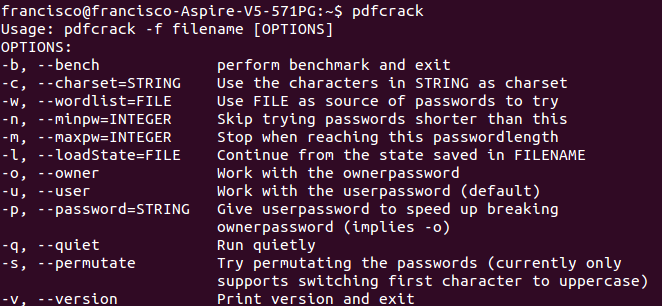
Pdfcrack is a command-line tool where we just need to give it the filename and it starts testing thousands of passwords per second—always depending on our computer's capacity. For example, in my case it is capable of testing 30,000 passwords per second. That means, doing the math, if the password had four characters it could find it in a minute, if it had six in a little over two and a half hours, and if it had nine… in an eternity and a half.
pdfcrack archivo.pdf
All that is assuming it is composed of random letters (uppercase and lowercase) and numbers, but the truth is that people usually use common words that can be found in wordlists. Fortunately, pdfcrack can read wordlists and test them instead of generating all possible combinations of letters and numbers.
pdfcrack archivo.pdf -w /usr/share/dict/spanish
Suppose the password is "cachiporrazo". Generating all combinations randomly, we would never get the password, but using the Spanish word dictionary as in the proposed command, it can be obtained in just a few seconds.
Usage restrictions
Normally, PDF viewers for GNU/Linux don't even support the annoying file usage restrictions anymore, so we won't have anything to worry about. You will be able to print them and copy their content without problems, despite the author's wishes.
The only reader I know that supports these restrictions is Okular, KDE's document viewer. Fortunately, they can be disabled. To do so, go to the Settings » Configure Okular menu and, in the General section, uncheck the Obey DRM restrictions box.
Removing passwords and restrictions
We assume that by now you are already able to access the file and work with it without restrictions of any kind. But it might still be interesting to remove those nuisances from the file in case you want to work with it on other platforms, or don't want to keep remembering the password.
For this task, you can use the print to PDF file feature, available in most document viewers. Just go to the File » Print menu. Then select the virtual printer to print to PDF format and give a name to the new unprotected file. Isn't that simple?
Alternatively, you can use the command-line tool pdftops to convert the file to PostScript format and then convert it back to PDF with pstopdf. The problem is that this tool does not support encrypted files; it will only serve to remove restrictions from files without a password.
